How KwikAds helped Shop Unrush boost ROAS by 37% in 3 months
How KwikAds helped Shop Unrush boost ROAS by 37% in 3 months
How KwikAds helped Shop Unrush boost ROAS by 37% in 3 months
How KwikAds helped Shop Unrush boost ROAS by 37% in 3 months
Kwik Engage
WhatsApp Shop: What Is It and Its Benefits For Shopify Sellers
 20 Mar 2026
 10 Min Read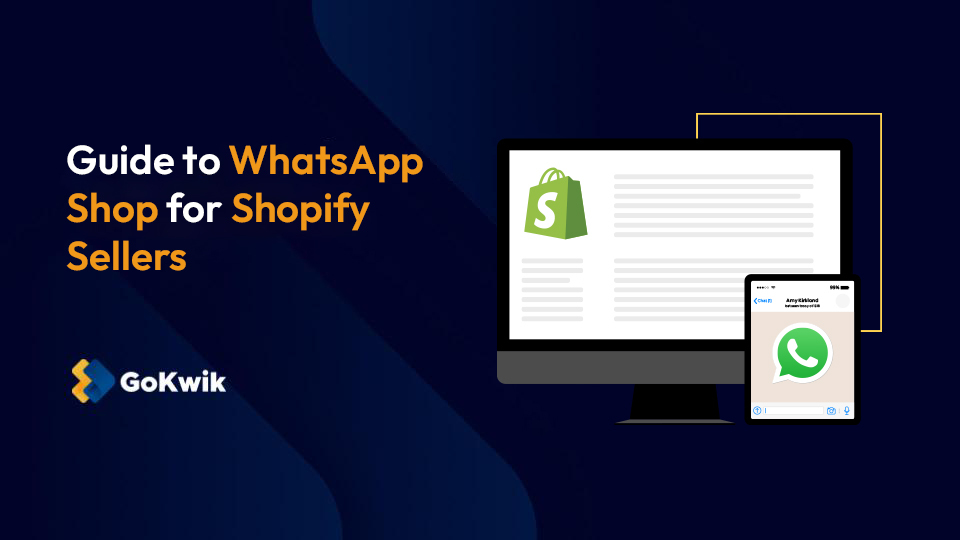
Suhag spearheads D2C growth strategies at GoKwik, focusing on e-commerce optimisation, conversion funnels, and sales enablement. Based in Bengaluru and an MICA alumnus, he excels in crafting GTM playbooks and marketing campaigns tailored for D2C brands.
Read this blog on your favourite platform
As eCommerce competition intensifies, relying solely on storefront-led journeys limits growth. Successful Shopify sellers are embracing conversation-led buying experiences in addition to it. They know that today’s shoppers expect immediacy and minimal friction over anything else. This shift in thinking has given rise to WhatsApp Shop.
It’s a natural extension of eCommerce convenience that aligns with how modern consumers prefer to shop. Instead of forcing buyers through multiple steps across your Shopify website, WhatsApp Shop brings the storefront directly into your conversation with potential customers. In this blog, we will understand what exactly WhatsApp Shop is, how it benefits Shopify sellers, and how to implement it successfully.

What is a WhatsApp shop?
A WhatsApp Shop is a native commerce capability within the WhatsApp ecosystem. It transforms a simple messaging channel(WhatsApp) into a high-intent commerce surface by smartly combining product discovery, real-time conversation, customer nurturing, and order placement. Here is an example of a WhatsApp Shop from an official WhatsApp Business blog:
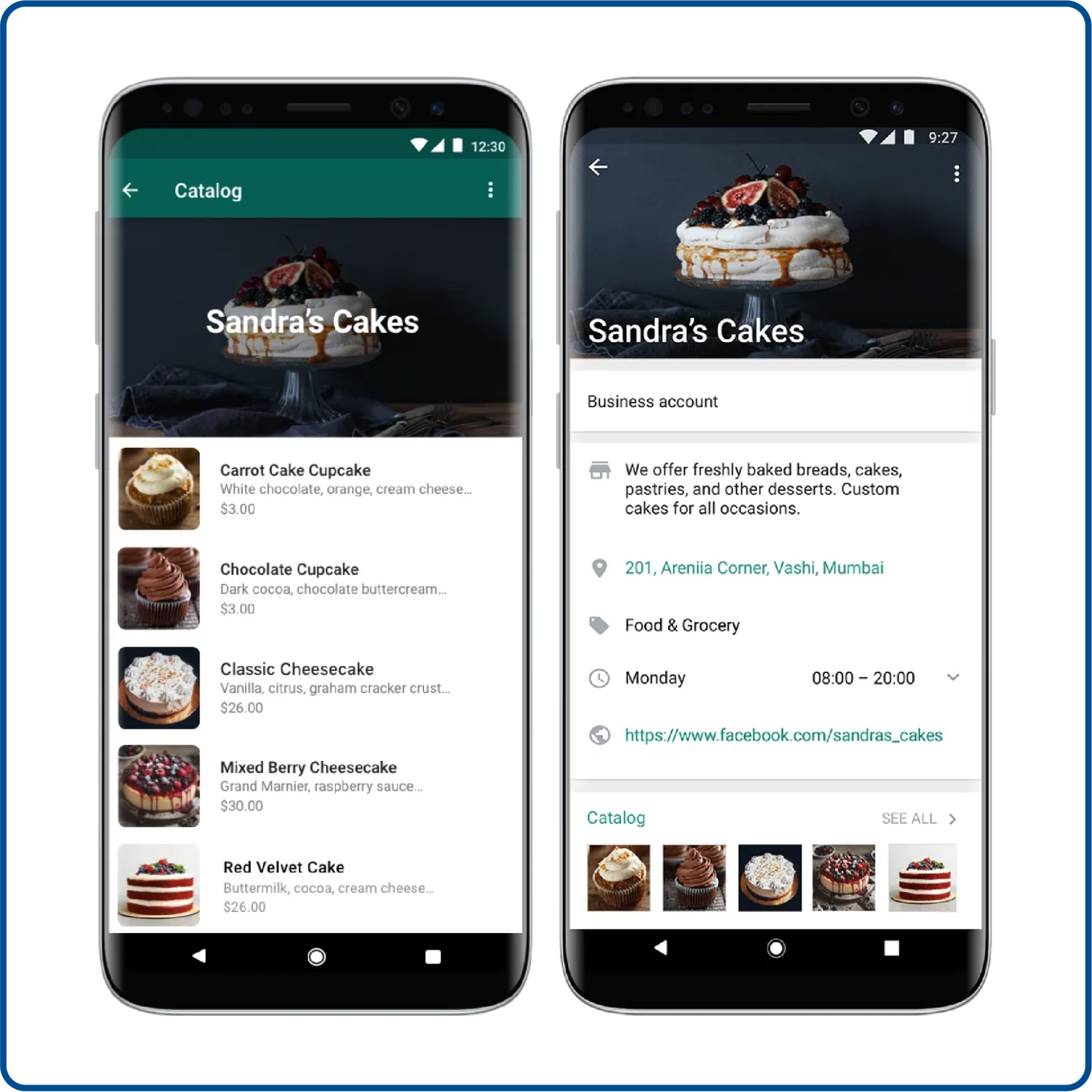
For Shopify sellers, WhatsApp Shop is a convenient and additional space to showcase their product catalogs. You don’t need to redirect shoppers to your product pages or mobile app, which might introduce friction and increase drop-offs.
Once you sync your Shopify online store with WhatsApp Business through API-based integrations, you can use WhatsApp Shop to display products with prices, provide add-to-cart actions, collect payments, and even manage orders without forcing customers to leave the conversation.
What are the benefits of WhatsApp shop for Shopify sellers?
WhatsApp Shop is not just another sales channel for Shopify sellers. It redefines how you engage and convert potential buyers. Here are some benefits you can enjoy as a Shopify seller using WhatsApp Business Shop:
1. Faster purchase journey
WhatsApp Shop allows you to tap into the entire buyer lifecycle. Right from acquisition to conversion, you can engage customers within a single, high-intent channel. By blending real-time conversations with rich, contextual product information, you can pitch to buyers precisely when intent is strongest in a familiar space. The result - less friction and customers move through the purchasing journey with greater speed.
2. Reduce cart abandonment
The current global cart abandonment rate stands at 70.19%. This clearly shows cart abandonment is a plaguing issue for most eCommerce sellers in 2025. WhatsApp Shop allows you to proactively re-engage shoppers who drop off mid-journey through timely reminders or targeted offers delivered directly to a messaging tool they use for daily communication. So, by reaching customers where they are most responsive, you address their hesitation and recover revenue that would otherwise be lost.
3. Unlock upselling and cross-selling opportunities
WhatsApp Shop creates a natural environment for upselling and cross-selling by building trust through conversational commerce. Once your customers have a positive purchase experience, you can recommend complementary products or upgrades within the same chat flow. Personalized product suggestions make WhatsApp a highly effective channel for increasing AOV (Average Order Value) without feeling intrusive.
4. Strengthen customer loyalty and brand advocacy
85% of consumers prefer to message brands directly. Unlike transactional channels, WhatsApp enables more personal and relationship-driven communication. By consistently delivering helpful and relevant interactions, you can build stronger emotional connections with your customers. Over time, this leads to higher repeat purchase rates and customers who actively advocate for your brand within their networks.
5. Blend commerce with support
WhatsApp Shop brings customer support closer to the point of purchase. Your customers can raise queries or request assistance directly within the conversation. Your support team, on the other hand, can gain immediate access to order and interaction history. This enables faster resolution and a more personalized support, which ultimately drives higher customer satisfaction.
6. Reduced customer acquisition and retention costs
WhatsApp Shop helps lower acquisition and retention costs by shifting focus from expensive, one-way marketing channels to low-cost conversational commerce. By converting existing traffic directly within WhatsApp and nurturing customers through personalised follow-ups and re-engagement messages, you can reduce reliance on paid ads.
Also read:- 40+ Copy-Paste WhatsApp Bio Templates to Boost Trust & Sales
Also read:- 40+ Copy-Paste WhatsApp Bio Templates to Boost Trust & Sales
How to set up a WhatsApp shop for Shopify businesses?
Launching a WhatsApp Shop involves a few key steps that must be completed in the right order. When set up correctly, these steps ensure your products are discoverable, and your conversations stay contextual. Here are those steps:
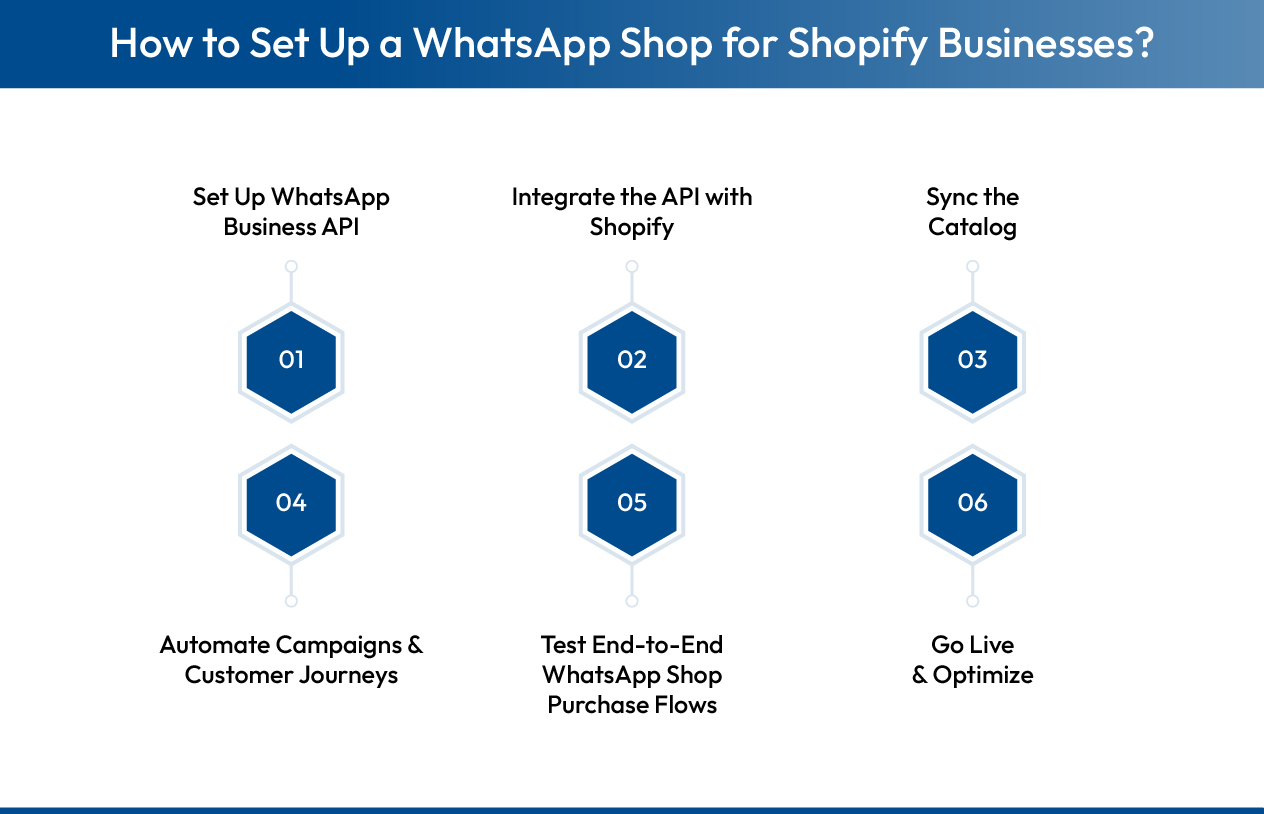
Step 1: Set up WhatsApp business API
Before you begin, you need access to the WhatsApp Business API. For this, you need to complete four key tasks:
- Create a Meta Business Portfolio account
- Register a WhatsApp Business Account under it
- Verify your business by submitting official documents
- Link a dedicated phone number that will be used exclusively for WhatsApp communication
Once approved, you will gain access to all the advanced WhatsApp commerce features. This includes message templates, product catalogs, interactive messages, and various automation capabilities.
Step 2: Integrate the API with Shopify
Now, the WhatsApp Business API does not come with a built-in interface. You’ll need the help of third-party providers or platforms to integrate the WhatsApp API with Shopify. These providers act as a bridge between WhatsApp and Shopify by offering tools that simplify the integration.
When choosing a provider, look for:
- Easy and quick Shopify integration support
- Support for WhatsApp catalogs and automation
- Reliable customer support
- Compliance with WhatsApp’s messaging policies.
Once you’ve chosen your provider, follow their specific instructions to integrate the API with your Shopify store. This usually involves adding a plugin or an app to your Shopify store that connects to the WhatsApp Business API.
Also read: Decoding how whatsapp business api pricing works
Also read: Decoding how whatsapp business api pricing works
Step 3: Sync your product catalog
After the WhatsApp Business API is connected to Shopify through your provider, the catalog sync is handled programmatically. There is no manual upload involved. The provider’s application facilitates the pulling of product data directly from Shopify. This typically includes product names, images, prices, variants, and availability. This data is then mapped to WhatsApp’s Commerce Catalog format and pushed to Meta’s catalog system.
Once the initial sync is complete, the integration typically runs on continuous or near-real-time updates. Any change made in Shopify, such as price updates, inventory changes, product edits, or new product additions, is automatically reflected in the WhatsApp catalog.
Most providers also allow you to control visibility by selecting specific products or collections to sync. This ensures your WhatsApp catalog remains focused and optimized for conversational shopping experiences.
Step 4: Automate campaigns and customer journeys
Once your Shopify catalog is synced and live inside WhatsApp, the focus moves from enablement to customer journey orchestration. This involves:
- Automate how your shoppers discover products
- Engage with your WhatsApp catalog
- Complete purchases
- Receive post-purchase communication
For these, you need to configure catalog-led journeys that improve customer engagement, such as automated product recommendations, category-based browsing flows, shopping cart creation directly from the WhatsApp product catalog, and lifecycle messaging tied to commerce events like order confirmations, payment status updates, shipping notifications, delivery alerts, and abandoned cart recovery.
This is where Kwik Engage helps. It enables you to automate catalog-driven customer journeys across WhatsApp and manage revenue-focused WhatsApp Shop flows with precision. Here are Kwik Engage’s key capabilities:
- Through its integration with Kwik Pass, Kwik Engage allows you to identify and engage shoppers who interact with your WhatsApp catalog, even if they were previously anonymous.
- You can automate abandoned cart recovery linked to GoKwik Checkout.
- Trigger repeat sales and upsell campaigns based on catalog interactions and purchase history.
- Build retention journeys using advanced behavioural segmentation.
- Built-in analytics and revenue attribution give you visibility into GMV influenced by WhatsApp Shop campaigns.
- Support for completing Blue tick verification that builds brand trust.
Combined with AI-powered customer support automation and a unified omnichannel inbox, Kwik Engage enables you to operate WhatsApp Shop as a structured and high-performing commerce channel.

Step 5: Test end-to-end WhatsApp shop purchase flows
Before going live, it is critical to test the entire WhatsApp Shop experience end-to-end. Start by validating catalog visibility inside WhatsApp Shop. Here are some key aspects you need to test:
- Make sure that the products are displayed correctly with accurate pricing and images.
- Test catalog navigation and cart creation directly within WhatsApp to confirm that the browsing experience is intuitive and error-free.
- Validate the checkout flow initiated from the WhatsApp catalog.
- Simulate real customer scenarios such as abandoned carts, failed payments, successful orders, and order cancellations to confirm that recovery journeys and transactional messages are triggered correctly.
Thorough testing at this stage helps you identify catalog sync issues and automation gaps before customers encounter them.
Step 6: Go live and optimize
Once all catalog and messaging flows are validated, you can officially launch your WhatsApp Shop. Begin by making your WhatsApp Shop discoverable across customer entry points such as WhatsApp links, QR codes, click-to-WhatsApp ads, and existing customer communication channels.
After launch, closely monitor performance metrics specific to WhatsApp Shop, including metrics related to:
- Catalog views
- Product clicks
- Cart creation
- Checkout completion
- Abandoned cart recovery
- Repeat purchases
- Revenue generated
Use these insights to refine catalog presentation and optimize automation logic. Continuous iteration supported by experimentation and performance tracking ensures your WhatsApp Shop evolves into a high-performing channel tightly integrated with your Shopify ecosystem.
Also read:- Kwik Engage vs Bitespeed: WhatsApp Commerce Tool for Scaling D2C Brand
Also read:- Kwik Engage vs Bitespeed: WhatsApp Commerce Tool for Scaling D2C Brand
Next steps: Power your Shopify growth with WhatsApp commerce
WhatsApp is no longer a channel Shopify sellers can afford to overlook. By bringing product discovery and engagement into a conversational interface, you can reduce purchase friction and shorten buying cycles. However, enabling a WhatsApp storefront is only the starting point. The real advantage comes from how effectively you engage and retain shoppers within that storefront.
This is where Kwik Engage plays a critical role. While WhatsApp Shop provides the commerce surface, Kwik Engage delivers the intelligence and automation required to turn conversations into measurable revenue.
Want to experience the power of Kwik Engage firsthand? Contact us now.
What is WhatsApp Shop?
WhatsApp Shop is a commerce capability that allows you to showcase your product catalog directly inside WhatsApp. Your customers can browse products, view product images, ask questions, and initiate purchases within the WhatsApp interface.
Can you buy things from WhatsApp?
Yes, your customers can browse products and initiate purchases through WhatsApp shopping. They can explore your synced Shopify product catalog, add items to a cart, get quick replies to common questions, proceed towards checkout, and successfully place the order.
How do I find a store on WhatsApp?
Your potential customers typically find your store on WhatsApp through direct links, QR codes, click-to-WhatsApp ads, website buttons, or messages sent directly by you. Once they enter the chat, they can access your catalog, view product details, and start WhatsApp online shopping.
Is WhatsApp safe for purchases?
WhatsApp itself provides an encrypted communication environment. This makes the WhatsApp eCommerce store safe for customers to browse products and complete the purchasing process. For all purchases, transactions are completed using trusted payment engines and secure payment methods. This ensures that sensitive payment information and the user's contact information are handled securely.
Is it safe to do business through WhatsApp Shop and handle payment data?
Yes. In a WhatsApp Shop setup, payment data is processed securely and not stored or managed directly within WhatsApp. This separation ensures compliance with payment security standards while allowing WhatsApp to function as a commerce and communication layer rather than a payment processor.
Can customers ask questions or get support during their shopping journey?
One of the key advantages of WhatsApp Shop is real-time interaction. Customers can ask product-related questions via instant messaging and get post-purchasesupport directly within the same chat. This conversational customer service capability reduces friction, improves post-purchase customer experience, and ultimately drives customer retention.

AUTHOR
Suhag Vamja
Head of Product Marketing @ GoKwik