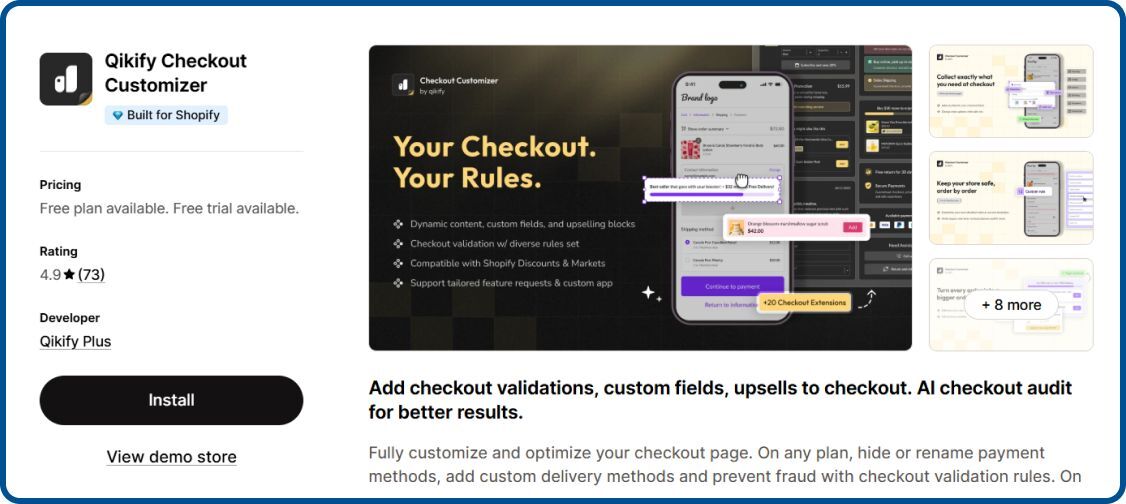
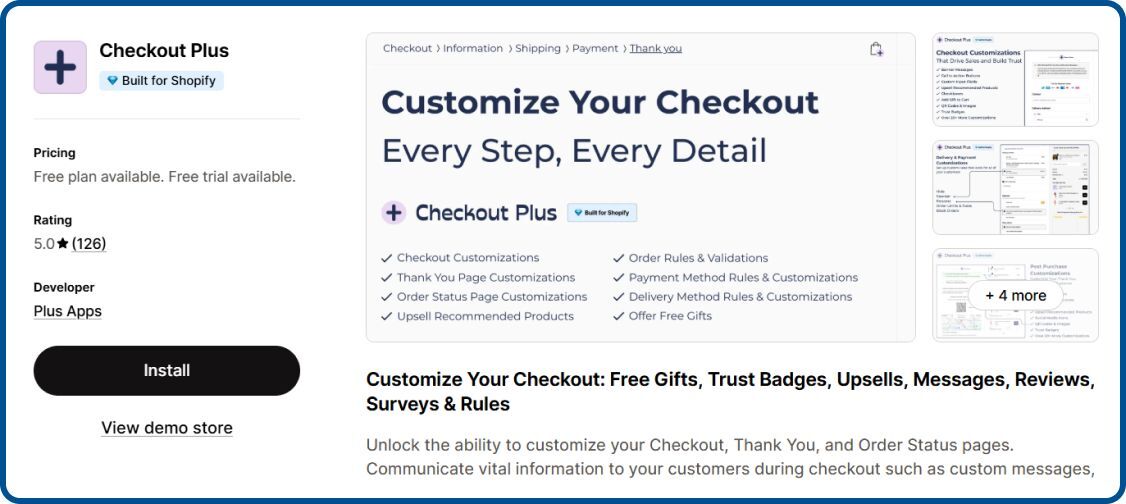
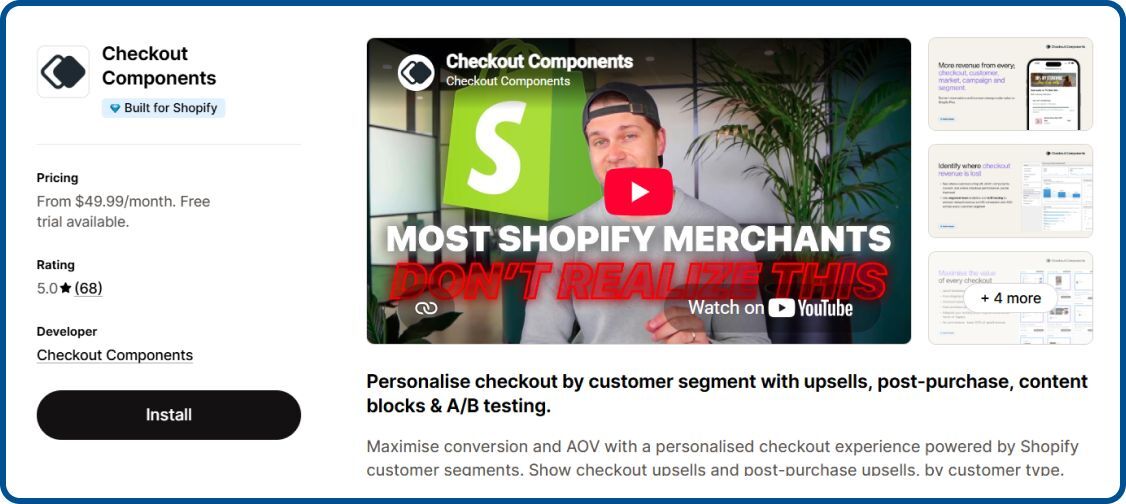
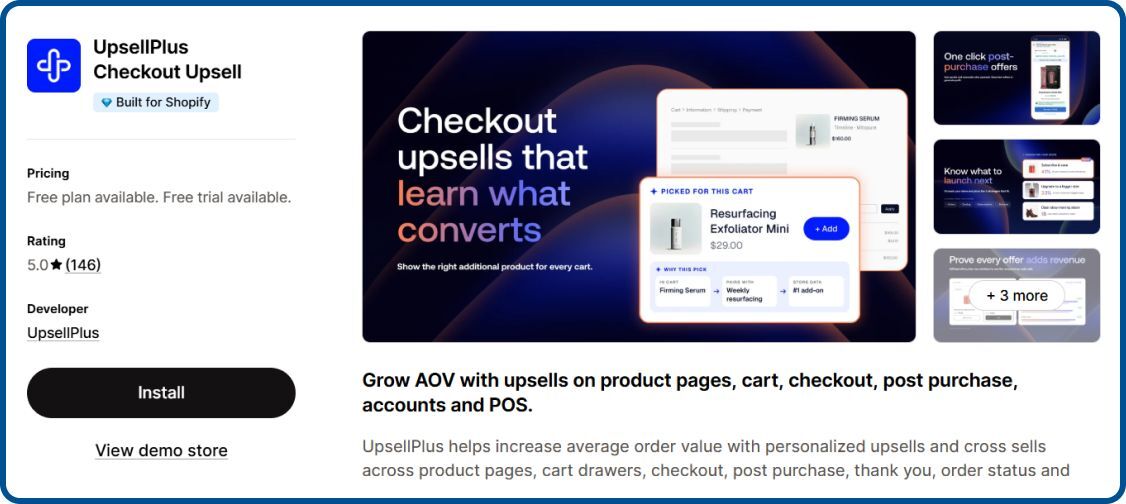
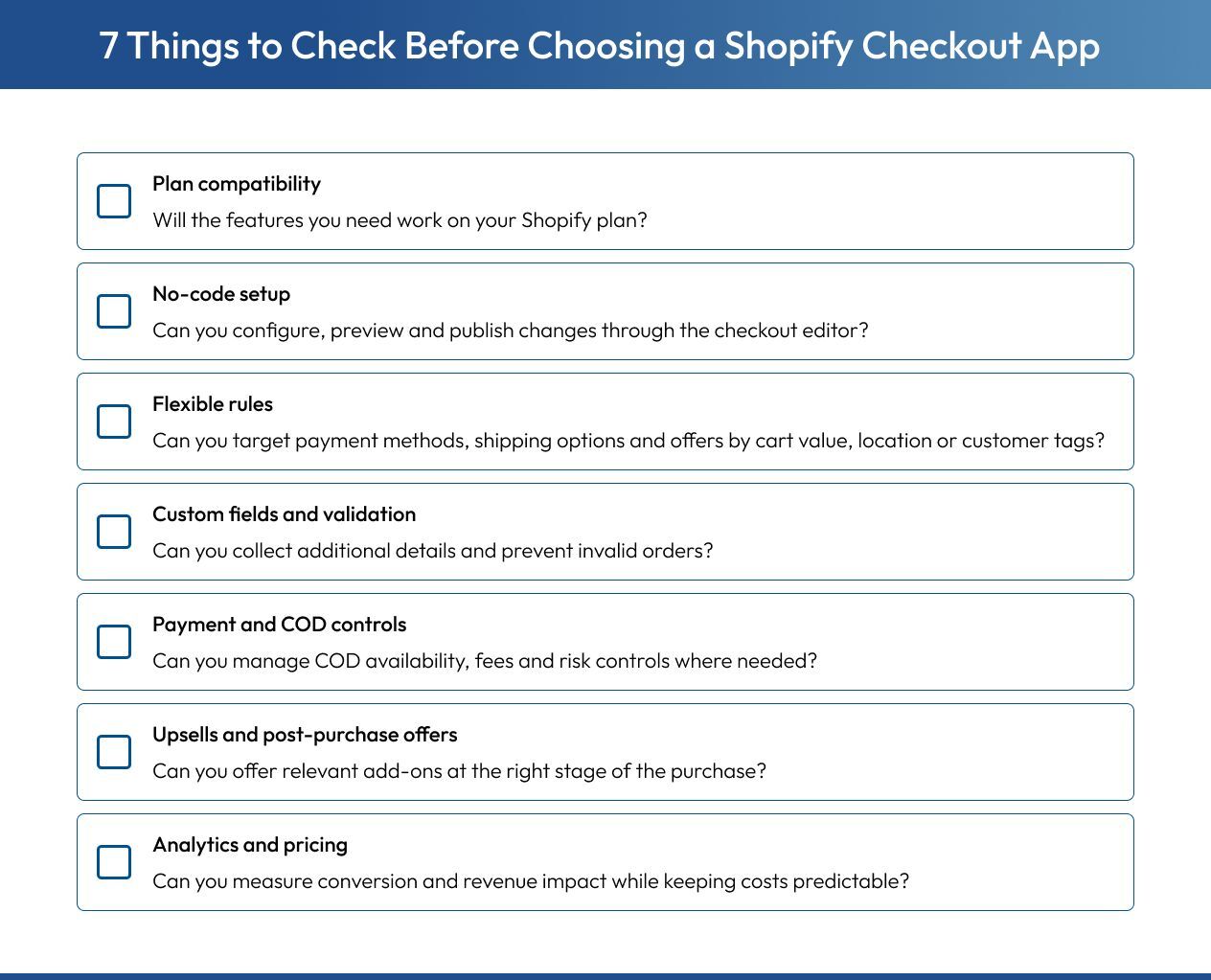
The key features to look for in a Shopify app to customize the checkout page fall into two groups. The first is fit: the app has to work on your Shopify plan, set up without code, and cost a fair amount for your order volume. The second is control: the tools that let you change checkout behavior and measure what each change does.
Shopify Plan Compatibility
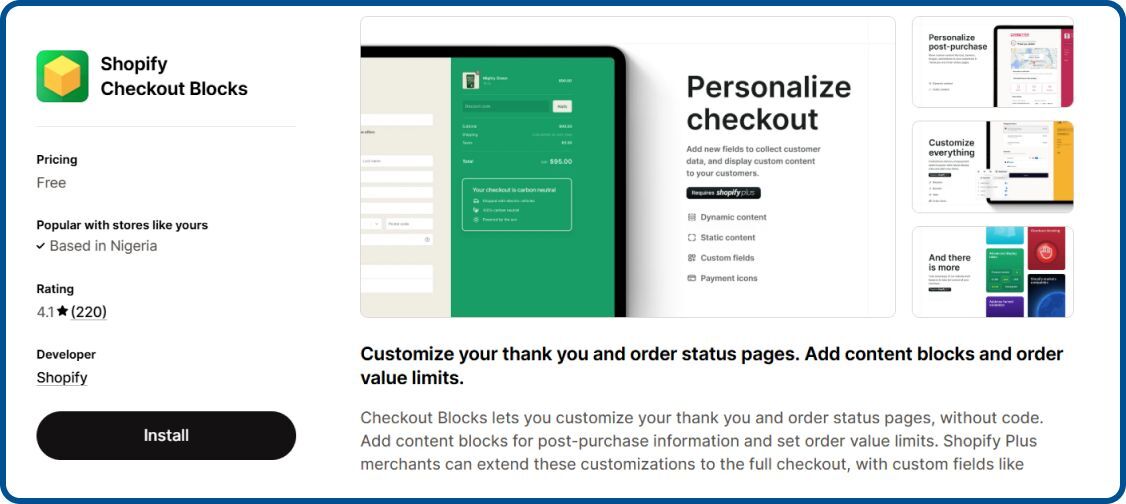
Check which features work on your Shopify plan before you install. Shopify only lets apps change the information, shipping and payment steps on Shopify Plus. On Basic, Grow or Advanced, an app’s checkout blocks, custom fields and checkout upsells won’t show at all. Good Shopify App Store listings label Plus-only features clearly. If a listing doesn’t, check the help docs or ask support before you choose a paid plan.
No-Code Checkout Editor
The app should place its blocks through Shopify’s checkout editor in your Shopify admin. There you can preview each change on your real checkout, on mobile and desktop, before you publish it. This means no developer is needed. It also confirms the app is built on checkout extensibility, so its changes keep working through Shopify’s updates.
Rule Conditions
Rules decide when a block, payment method or offer appears. Look for conditions on cart value, products or collections, customer tags, location and order history, plus the option to combine them with AND/OR logic. More conditions let you match specific needs without building a new rule for every case. For example, you can hide COD for first-time buyers in high-RTO pincodes.
Custom Fields and Validation
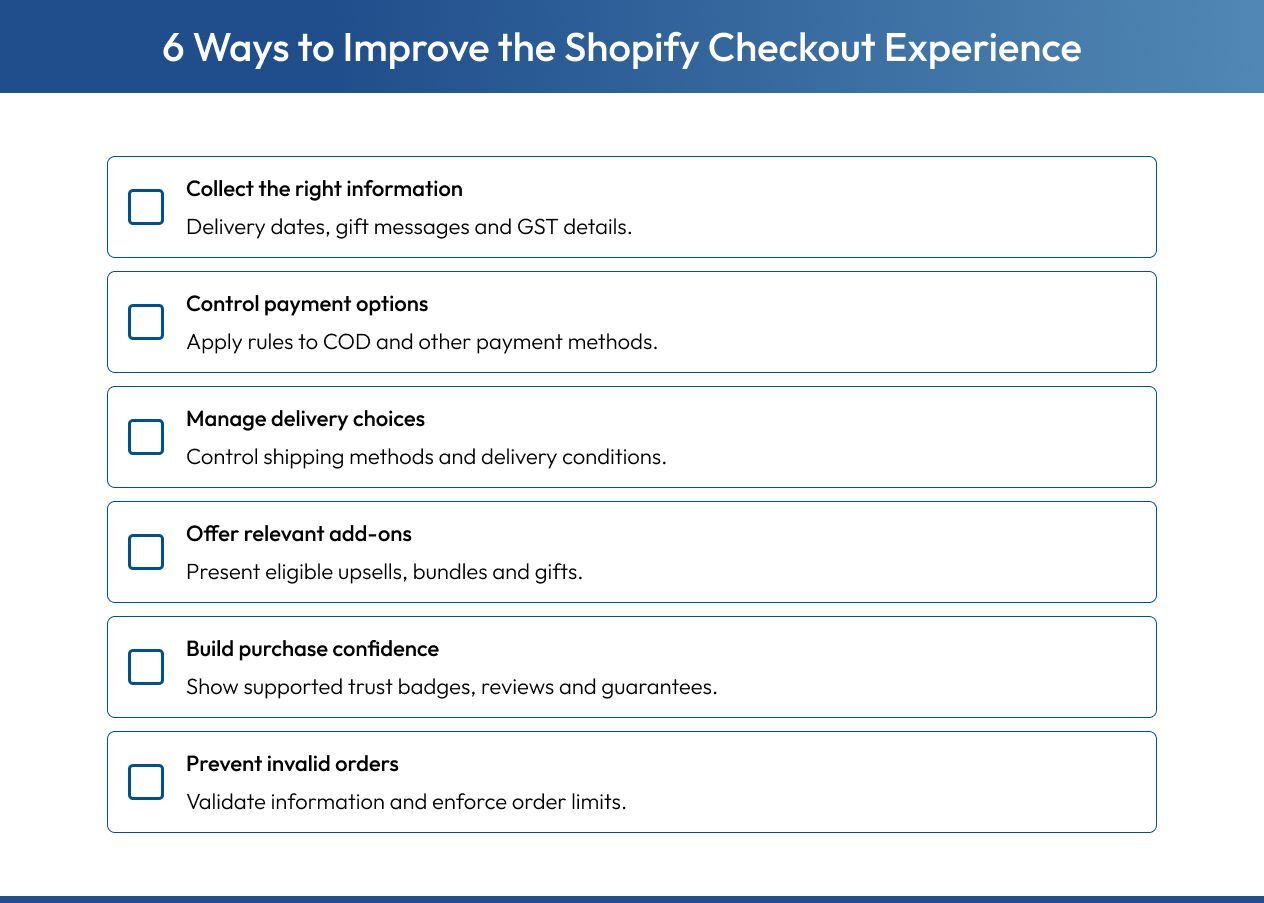
Custom fields collect what the default checkout can’t, such as a delivery date, gift messages, a GST number or delivery instructions. Validation rules stop problem orders before they’re placed: they can block PO box addresses, cap quantities, set a minimum order value or make a field required. Fields on the checkout steps need Shopify Plus, but validation works on every plan.
Payment and Delivery Controls
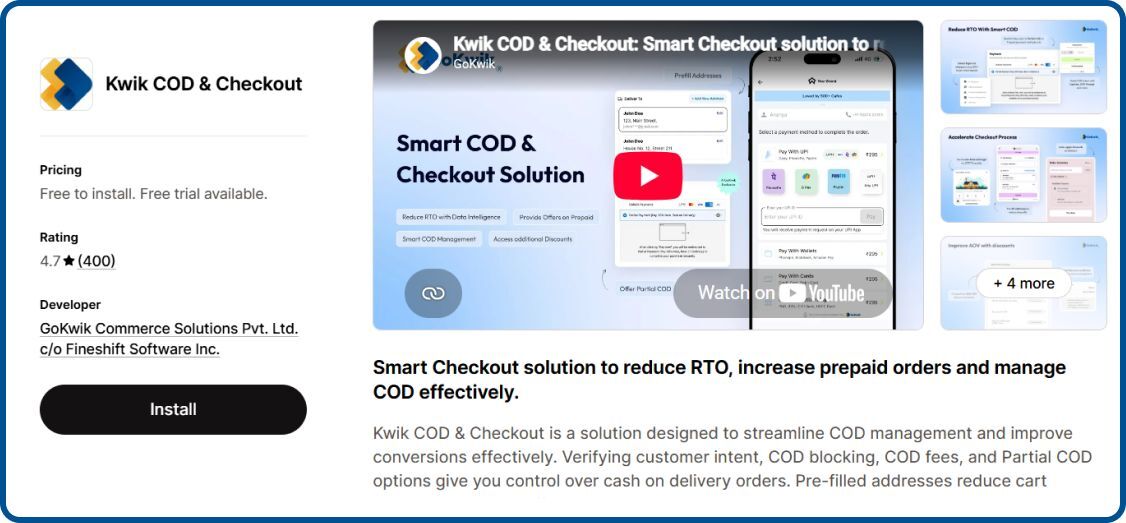
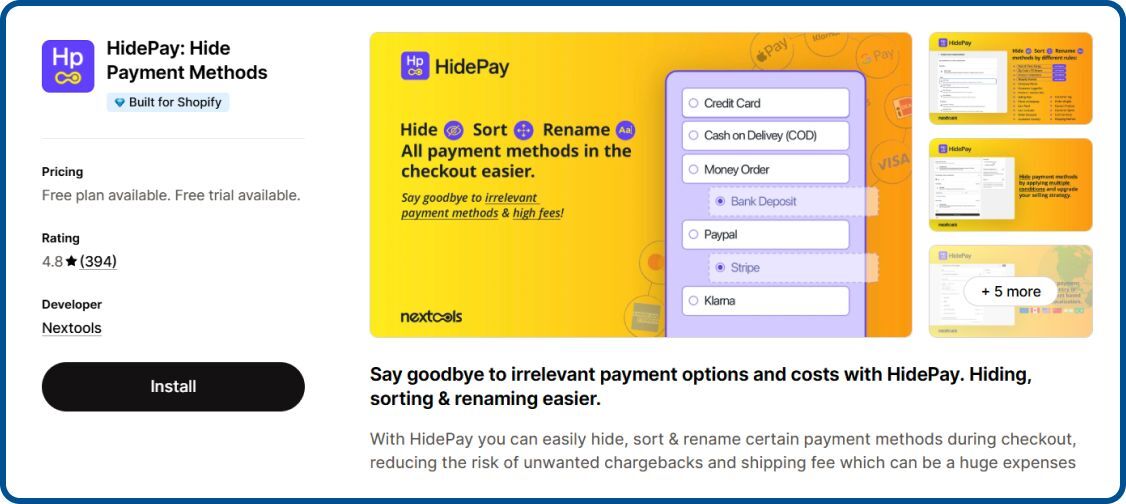
The app should hide, rename or reorder payment methods and shipping methods by rule, including COD. Renaming helps shoppers too, for example by showing which delivery option is fastest. Indian stores should check whether the app only switches COD on or off, or whether it can also add COD fees, offer partial COD and screen risky orders. In the US and Canada, non-Plus stores can only customize non-card payment methods.
Upsells and Thank You Page Offers
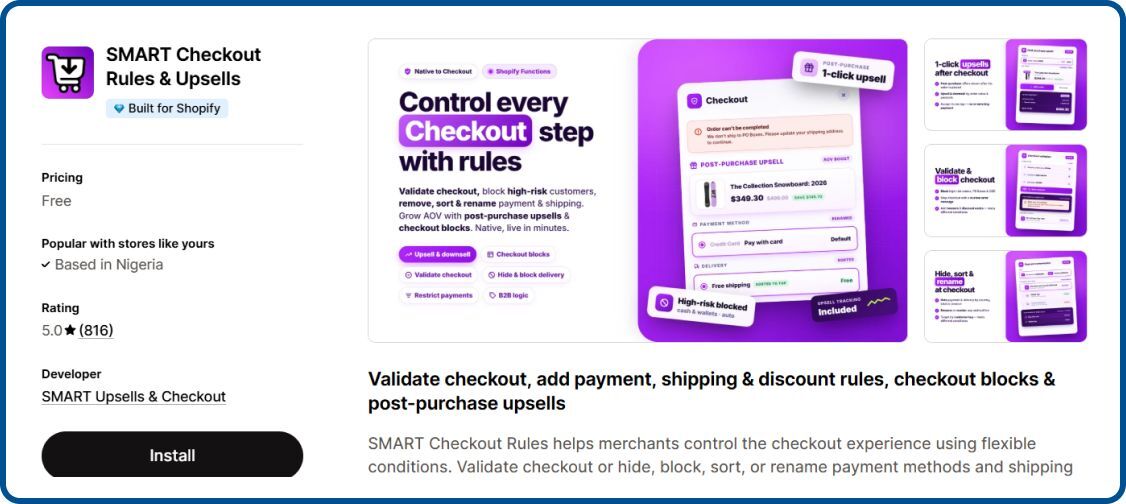
Check where the app can show offers on your plan. Checkout upsells need Shopify Plus, while thank you page and post-purchase offers work on every plan. Shopify’s post-purchase page doesn’t show for COD and some wallet payments, so COD-heavy stores should lean on thank you page offers. Look for one-click add, free gift rules and offers based on cart contents, all of which raise average order value.
Analytics and A/B Testing
Look for reports on offer views, add rates and upsell revenue, plus checkout conversion and AOV before and after each change. A/B testing shows whether a new block or rule actually lifts conversion rates, instead of leaving you to guess. Check that the app’s figures match Shopify analytics or Google Analytics, so your conversion tracking gives you reliable conversion data.
Pricing Model
Checkout apps charge in five common ways, and each one scales differently:
- Flat monthly fee: One fixed price whatever your sales, so it’s easy to budget. Checkout Components works this way.
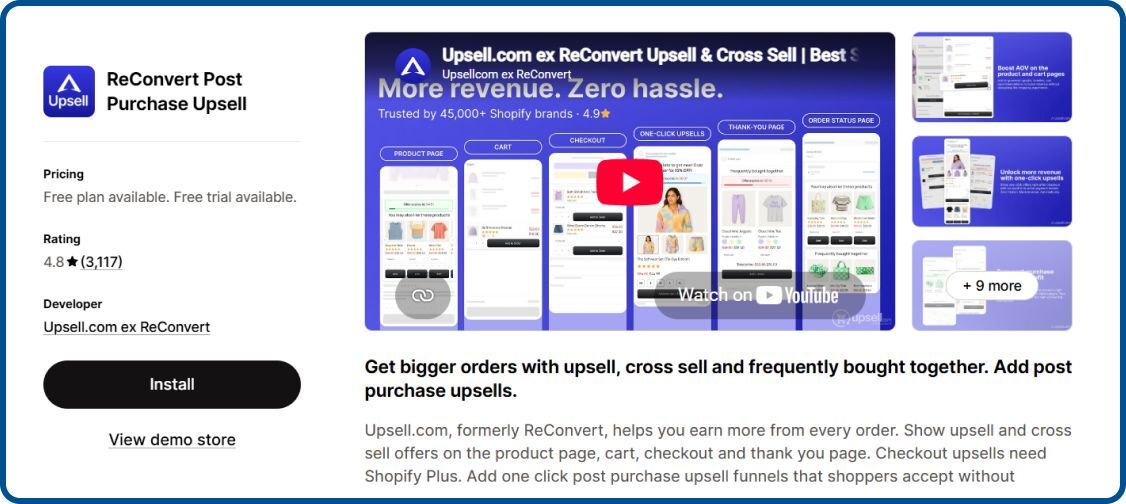
- Order-based: The price rises with monthly orders, as with ReConvert and Kwik COD & Checkout on the App Store.
- Revenue-capped: Each plan covers upsell revenue up to a limit. Once you pass it, you move up a plan, as with UpsellPlus.
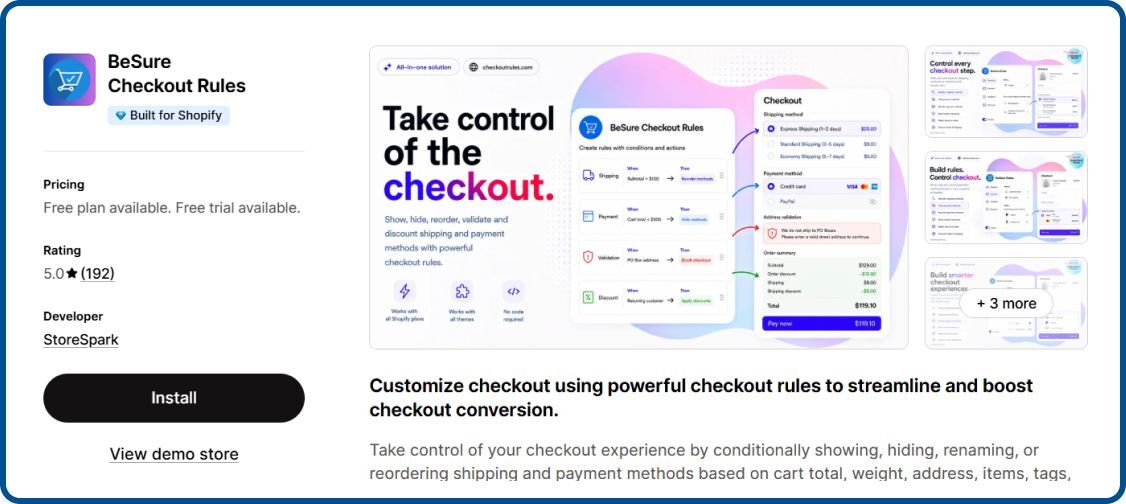
- Rule-based: The price depends on how many rules you run, as with BeSure and Kedra.
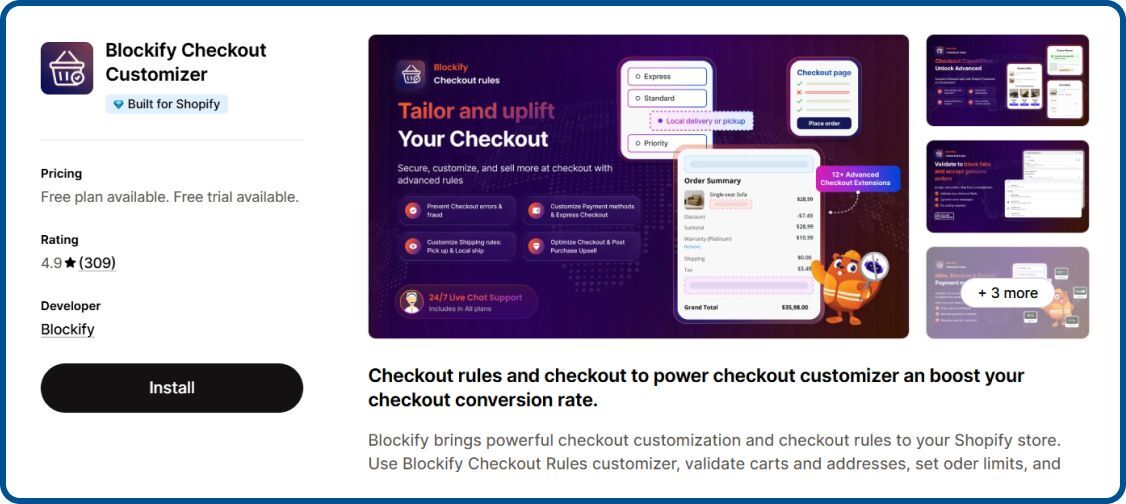
- Split by Shopify plan: Plus stores pay a separate, higher price, as with Blockify.
Also check whether the free plan works on a live store, since some only run on development stores or in test mode. Price the app for your busiest sales month, not an average one.
.

 30 Oct 2026
 30 Min Read