Products are the foundation of your store. You'll add them one at a time through the Shopify admin.
From your Shopify admin, click Products in the left sidebar, then click Add product.
Source: Shopify
Fill in the product title and description. The description is where you explain what the product is, what problem it solves, and why someone should buy it. Write in plain language—your customers care about benefits, not technical jargon.
Add at least one product image. Shopify accepts standard image formats and will automatically resize them for different parts of your store. Good product photography matters, but you don't need professional equipment. Clear, well-lit photos taken on a smartphone work fine when you're starting out.
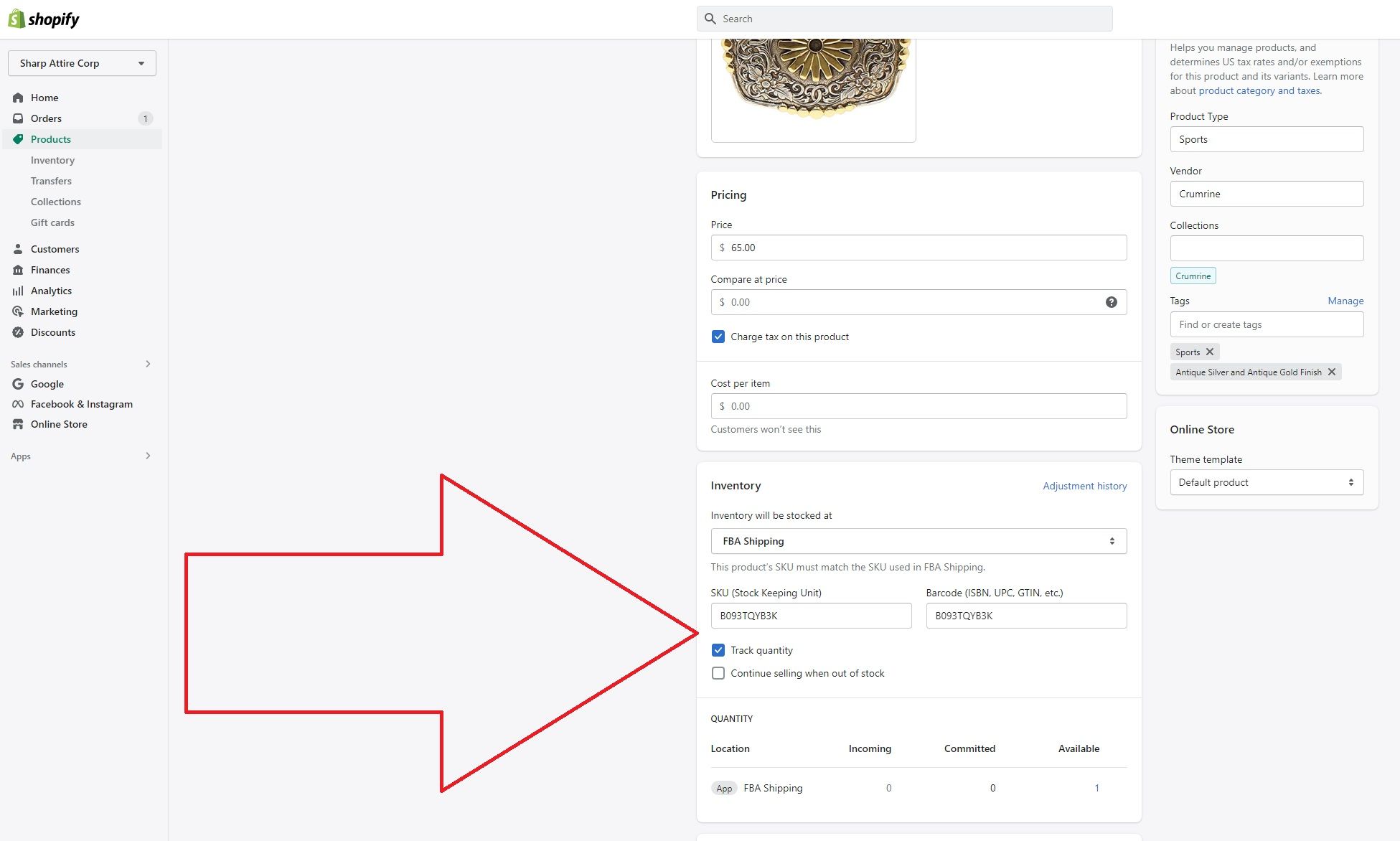
Set your price in the Pricing section. If you charge taxes, Shopify can calculate them automatically based on your location and your customer's location.
If you have physical inventory, scroll down to the Inventory section and enter your available quantity. Check the box that says "Track quantity" so Shopify prevents overselling.
Click Save in the top right corner.
Source: Shopify
If you have multiple products, you can add them one by one using this same process. For faster bulk uploads, you can use a CSV file—Shopify provides a template that works in Excel or Google Sheets.






_1790076136.png)